Cisco Live: Connecting Thousands
Recently 14,000+ technology geeks invaded Las Vegas for Cisco Live! 2011 at Mandalay Bay Convention Center. For me this was my 4th year in a row attending Cisco Live! and the 2nd in a row at Vegas. If you have never attending a Cisco Live! event in person I strongly suggest that you try to budget for it next time around. Not only is this the best week to jump head first into all areas of Cisco’s product portfolio but it is also an opportunity to see how the products can come together to provide connectivity for devices and people.
For every Cisco Live! event that is held Cisco builds their own network to support the conference attendees, sponsors, and speakers. This gives Cisco the opportunity to get a large set of data points regarding their products performance in abusive conditions. Lately we have seen or heard about the BYOD (bring your own device) phenomenon that is sweeping across the enterprise network and there is no better place to see that than a large IT conference. One can safely assume that for all the 14,000+ in attendance each person will have at least 1 Wi-Fi connected device. Now let’s assume that a large chunk of those in attendance are like me and also have their laptop and a tablet with them, that’s a lot of connected devices to support! Whenever I talk with customers about wireless deployments the first thing I will say when we get to the point of turning on a network is that the client will cause the best wireless network to fail. We always push to make sure that the latest drivers are applied to the devices going to be used to ensure proper roaming and performance. But how do you manage that when you have no control over the devices being used? In the future we’ll use tools like Cisco NCS and ISE, for now we just hope it works!
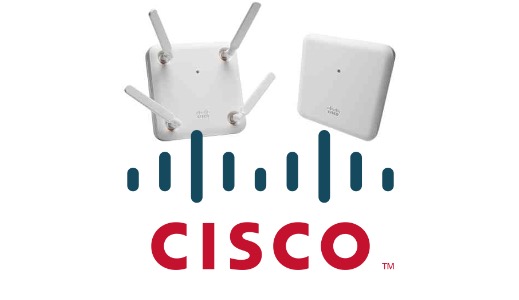
Throughout the conference I was switching between my iPhone, iPad, and MacBook Pro all utilizing the wireless network, whether it be to connect with friends using the Cisco Live! event app (think Foursquare but just for attendees), downloading slides from ciscolivevirtual.com, or using FaceTime with the family. The wireless network allowed all of us to stay connected while roaming across 191 Cisco CleanAir APs with at times over 200 clients connected to a single AP! I’ll admit Monday was a little rough on the RF with some people experience data rate shifting but most of the issues that arose were from the backend services: DHCP, DNS, and some routing issues. To quote a common phrase amongst us in the wireless business on Twitter “It’s not the wireless!”
By the end of the conference you truly saw the power of the need for a wireless network to be pervasive and complete, the upcoming generations expect to be always connected and have access to the resources they find useful to complete a task at hand, after all this is “the human network” and the only way to achieve that is to provide a means for communicating.
Cisco Live 2011 Day 1: CCIE-W Techtorial
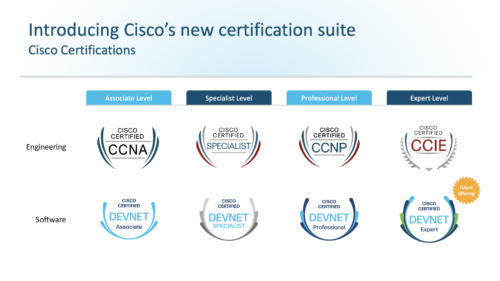
Today marked the first official event for Cisco Live 2011 for me and it was a good one! I sat an 8 hour techtorial revolving around the CCIE Wireless program. I was a little bummed to hear that they were focusing on v2 which is out Nov 18th 2011, but by the end of the day it was still a great success. I enjoyed being able to talk with the team that writes the material for the program and getting an insight into how the program runs. By the end of the day I had a better understanding of how the lab is graded and what to expect from the v2 lab if I end up needing it.
Here are some of the notes that I jotted down today:
- No more paper lab book. V2 will use the Lab Delivery System which is all electronic. Personally I think this is a step backwards and forwards at the same time. I like the new layout for how you are presented with your equipments console connections for example but I prefer that paper lab book to disassemble how I feel.
- When reading the config guides pay particular attention to the “note” sections as those are of importance. Obviously the material for the exam needs to be backed up by documentation, these notes might be the clue to your best practices.
- Speaking of best practices, the exam is roughly 95% best practice, don’t look too deep into the questions. The goal is not to fight the exam, just work through it.
- OfficeExtend is not using an OEAP600, so make sure you are familiar with the process (convert to HREAP, reboot, enable OE, reboot, etc).
- BandSelect – do not enable it for voice, this has been a battle I’ve had with Cisco getting conflicting information
- WGB Support – 7.0MR1 brought support for non-Cisco bridges, but don’t expect to config an HP bridge.
- The passive client feature seems to rely on multicast being configured, could be a good gotcha there!
- VLAN Select – an interesting feature I didn’t know about with this is that you can have a foreign mapping which will allow you to specify which interface on an anchor controller is ultimate selected for the client.
- When looking at an interface group an interface marked with an * is a “DHCP Dirty Interface” which means that a client failed to receive a DHCP address so the controller shuns it for a bit.
- Timers, timers, timers. Need to know the HA failover timers and how to tune them.
Ultimately it comes down to is that you really need to know the materials, including basic CCNP R/S knowledge. We may have lost the WiSM and had it replaced with 5508′s but that doesn’t mean we no longer need to do EIGRP for example. My advice is still the same that I’ve said after my previous attempts, the devil is in the details. Read the questions/workbook thoroughly, redraw your top0logies, organize tasks, and pay attention to what you are doing! The best part of the day was being able to actually take a “mini” lab, we were given a workbook worth 40pts and had to work through it with the instructors. They allowed us to see the solution guide to know how the proctors are doing the grading. Let’s face it, if you have sat the lab before I’m sure you got yoru score report and let out a big WTF when looking at your section scores. Seeing the solution guide helped me understand how I’m losing my points.
To conclude this post I just want to say don’t be afraid, study and put the effort into earning those digits by putting in hard work. Don’t devalue the certification by expecting to get 100% exact workbooks online, take the time to know the material and you will be rewarded!
Cisco OfficeExtend AP600
Cisco recently announced their OfficeExtend AP600 which is expected to hit FCS in June ’11. I’ve been fortunate to receive one of these for testing and experimenting with and here are some of the things that I’ve learned about the AP so far. This is not mean to be an all encompassing post regarding OfficeExtend solutions, if you have yet to setup OfficeExtend on your WLAN network please refer to my other post “Cisco OfficeExtend – Always Connected” for the ins and outs. So without further stalling lets get into the gotchas associated with these APs.
Initial Configuration
The OEAP600 differs from the previous in how you set it up, but the difference is a positive move! The OEAP600 is a functioning NAT router for your network. This AP can be used as a DHCP server for the personal side network. The OEAP600 ships with a default 10.0.0.0/24 network and is set as 10.0.0.1. To log into the AP the default credentials are admin/admin. Once logged in you can make changes to the DHCP server, personal SSID, and other settings. Check out some of the AP screens below:
Primary Controller Setup
With the 1131′s and 1142′s when you wanted to use them as OfficeExtend APs it was a somewhat tedious process of bringing them online, converting to HREAP, setting the checkbox for OfficeExtend, changing the primary to a public address, and testing on an external network. With the OEAP600 you now simply login to the web based GUI and enter in the public address for the WLC as shown below. The OEAP600 does not come with a serial console which takes away one of the troubleshooting tools used when debugging a failed WLC join. Cisco has replaced the serial console cable with a web based event log viewer that can be used to watch the join process.
WLAN Setup
There are some important caveats to take note of when setting up the SSIDs on the OEAP600. The first caveat that I ran into was that when the AP is placed in the default-group the WLAN index needs to be less than 8. Also the OEAP600 will only broadcast 2 corporate SSIDs, this is determined by either the lowest index values or by AP Group settings. Originally I was told that only WLANs with an index of 1 or 2 would be enabled on the OEAP600 so it’s nice to hear that there is a way (AP Groups) enable other indexes without recreating all of your SSIDs. Most all of my installs typically look like the following as to pre-stage the install for OfficeExtend: WLAN index 1 is the internal secure network, WLAN index 2 is voice, WLAN index 10 is the guest network. By setting up the WLANs in this way I can be assured that the correct networks will be enabled on the OEAP600.
Another caveat that I found was when I testing my voice network. OEAP600′s cannot use CCKM on their WLANs, as you may know CCKM is preferred for voice networks due to its fast roaming abilities. So remember when setting up your voice network to only have it support 802.1x, your internal anchor WLAN can support CCKM seen as this setting does not need to match in order for the Mobility Tunnel to come up. It’s also important to note that the OEAP600 does not support inter-band roaming on the 792x wireless IP Phones. You will be required to support a single frequency (most likely 5GHz) in an employees home office environment or be aware that there will be dropped audio packets when switching from 2.4Ghz to 5Ghz or vice-versa.
RemoteLAN Setup
Seen as the OEAP600 has wired Ethernet ports on it we now have the ability to bring one of those ports, port 4, back to the corporate network. While this creates more functionality it does introduce a large security risk. The setup is similar to a WLAN in that you would typically have the RemoteLAN setup on your DMZ WLC and then have that anchor to an internal DMZ that then drops the traffic onto an internal VLAN. Typical usage for this port is going to be either wired side IP Phones or a printer. The port has no concept of a voice VLAN so the interface should be set accordingly on your internal WLC. The port will support up to 4 connected devices via MAC address checks. If a 5th device connects it will not be allowed to connect until a previously connected device is idle for greater than 60 seconds. See below for the configuration screens.
What is the large security risk that this RemoteLAN port introduces? An open wireless AP could be connected to the port and will allow traffic onto your corporate network. To mitigate this you could do one of two steps: MAC filter or 802.1x port based security. If you remember from the previous images you may have noticed that there was an AAA tab under Security. When configuring a WLAN we would use this to set the RADIUS servers to be used for 802.1x authentication. The same holds true for the OEAP600 however in order to enable 802.1x security we have to go to the CLI to do so, these commands are not in the GUI yet. Once you run these CLI commands to enable 802.1x security make sure you NEVER apply changes via the GUI again to the RemoteLAN. If you do so you will disable 802.1x security.
Final Thoughts
Hopefully you are still reading this and didn’t get too bored! Having been able to use the OEAP600 for the past few days and going through quite a few different scenarios (RemoteLAN open, RemoteLAN 802.1x, wired IP Phone, printer, etc) I believe that I have ran into most issues that one would hit when doing an install. The OEAP600 is going to be a good device for a typical teleworker but I don’t think it is going to hit the mark for a power user. My 7925 wireless IP Phone modulates often on the OEAP600 while it doesn’t ever on my 1142 in OfficeExtend mod. I haven’t ran any range checks with Ekahau yet to determine the overall range, but I do feel that it is smaller than using an 1131 or 1142 AP. The ease of setup for the primary controller helps out a lot to make this a quicker setup. I’m still not sure on which route I want to take to handle the RemoteLAN setup, most likely I would prefer to do a simple MAC auth but with how easy it is to spoof MACs these days that won’t work well. I was unable to get my IP Phone up with EAP-FAST, EAP-TLS, or EAP-MD5, but my laptop was able to do EAP-PEAP and EAP-FAST without any problems over the RemoteLAN.
I’m intrigued as to the future features of this AP line. Given that it has a USB port I can see a lot of potential with that, think USB storage drives, printers, or maybe even a 3G/4G back-haul for popup sales/support offices. I would like to see PoE available via port 4 as well for an IP Phone, I can’t stand cables (hence why I’m a Wireless Engineer) nor can I stand wall warts so this would be a huge plus for me. I would also like to see the ability to support multiple OfficeExtend APs in a single home, we have a few customers that have inquired about 10000sqft executive homes that would require multiple APs for coverage.
I hope you enjoyed my look into the OEAP600 and look forward to your comments!
Cisco OfficeExtend – Always Connected
Over the past few weeks I’ve received a few tweet’s asking if anyone has setup Cisco’s OfficeExtend solution and what were some of the gotchas that you ran into. After this last round I decided I might as well blog about it, so here goes!
What is it?
The Cisco OfficeExtend solution does as its name implies, it “extends” your wireless network to a remote home office for example. For a few years now we have had HREAP mode APs that allow us to use LWAPP/CAPWAP APs over a WAN link with higher latencies for a remote small office, now we have the ability to bring this home as well.
What do I need?
Hopefully if you are reading this you have some experience in Wireless network from an Enterprise class so I won’t go over every little detail. Basically OfficeExtend requires an internal Cisco AIR-5508 Wireless LAN Controller. Per best practices and proper security a 2nd AIR-5508 is required as well. This 2nd WLC is placed into your DMZ and has a NAT address assigned to it with ports UDP 5246 and 5247 open to it from the big bad Internet. If you work with Cisco WLC’s you’ll notice that this sounds awfully familiar, say maybe from a Guest anchor deployment? (Makes that anchor controller seem a little better now doesn’t it!) Instead of anchoring a WLAN from the internal to the DMZ we do the reverse, we set the internal WLC the anchor for the DMZ. The end user then needs a Cisco 1131 or 1142 CAPWAP AP running 6.0 code or newer.
What does it do for me?
Here comes the best part, you prep the AP with the public address set on the WLC and bring the AP home or to a hotel etc. Once the AP comes online here comes your corporate networks with all of their security requirements, no need for VPN! Each of the WLANs that you set on the DMZ WLC with the internal WLC as their anchor will be available for you to use. For example, at my work we push down our internal Data, Voice, and also Guest networks to employees homes. When I leave my office with my Cisco 7925 wireless phone in my bag the minute I pull in the garage it connects back up and I can make/receive calls.
As with everything there are some caveats when setting this up. If you look at the diagram you can see the list of ports that are needed to be opened between the Firewalls. One thing you might notice right away is that I have to open up UDP 1812/1813 commonly used for Radius to my internal network, why is that you ask? Well unlike the Guest anchor solution where the user is authenticated on the anchor WLC with an OfficeExtend solution you are authenticated before you hit the anchor controller. So anything authentication methods that require EAP types will require you to grant access to your ACS or Radius server from the DMZ. Secondly if you have worked with Cisco WLCs you know that to do this the AP needs to be HREAP and then have the OfficeExtend box checked. Putting an AP into HREAP mode is easy, the hard part is getting it to join the public IP address. A process that works for me is converting it to HREAP mode, then allowing it to come back up after downloading the new code. Once the AP returns I check the box for OfficeConnect. After this is done I change the primary controller name to my DMZ WLC and set the IP to the public IP. Here’s the tricky part, luckily I have a DSL line at work which I can hook the AP up to and test the connection back to the DMZ network via the public IP.
So there you have it, Cisco OfficeExtend in a nutshell. Ever since deploying the solution I have not had a need to use VPN at home, what’s even more great is the fact that whenever IT pushes out a Kasperksy update that makes VPN no longer work I still have remote access!
Sonos iPad App Review
In case you haven’t heard Sonos has released their iPad app in conjunction with their new version 3.3 software today. The iPad app which was originally to have launched earlier is trickling into the iTunes App Store as we speak. Having been fortunate to use the app for the past few months I can say this is definitely a game changer when it comes to controlling your Sonos system. The interface is extremely intuitive and easy to use which is key for any Sonos component. Sonos basis their system on the fact that anyone can use it and it is simple to setup with its SonosNet wireless mesh networking.
We currently have a mixture of just about all Sonos components, only items missing are a CR200 touchscreen controller and an S5 ZonePlayer (hopefully coming soon to our new master bathroom!), the Sonos iPad is a nice addition. When we first bought our Sonos system almost 3 years ago we had only the CR100 controllers to use (3 of them in the house) and it worked well. The nice thing about the Sonos hardware remotes is that they use the SonosNet wireless mesh network and do not need a secondary full coverage wireless network to operate. However the CR100 did have some downfalls, not being a touchscreen was a major one. The CR200 fixed that and brought to the table a vivid color display. We chose to skip this remote in favor of our iPhones. While the interface on the iPhones was nice it was small and didn’t lend itself to fully displaying different information points at the same time.
This is were the iPad app shines. The design is based off of three columns on the main music screen. One column for zones, one for the currently selected zone(group), and one for your music library. Grouping zones is simple to do by clicking the “Group” icon next to a zone and select which zones should be in that group. Don’t like the music you are listening to? Easy, just find your music through your local library or any of the many online services, then drag and drop it onto your middle pane to play on the currently selected zone group. The larger screen works great for Sonos and the developers have fully utilized all the space given to them.
If you own a Sonos system and own an iPad you do not want to miss out on this combination. I guarantee you will be much more satisfied with how you utilize your Sonos system using this combination than you would ever be with another product like Logitech’s Squeezebox.
See below for some pictures of the Sonos iPad app in action on our Sonos system.
Please note I am not affiliated with Sonos in any shape or form nor have I received any monetary or other reimbursement for this review. I am simply a tech geek that loves his Sonos system.